Court manual / PC release · keyboard & mouse
Set up video, frame rate and game audio
Open System Settings from the Play menu. Use Video for display mode, resolution, VSync, the frame-rate limit and effects; use Audio for output devices, volume and voices. Turn on the FPS display before comparing video settings in the same practice scene.
Updated 2026-11-17 · PC release · keyboard & mouse
- System SettingsOpen global audio and video options
- VideoShow FPS and compare one change
- AudioChoose output, levels and voices
Choose settings and check the result
Open System Settings from Play
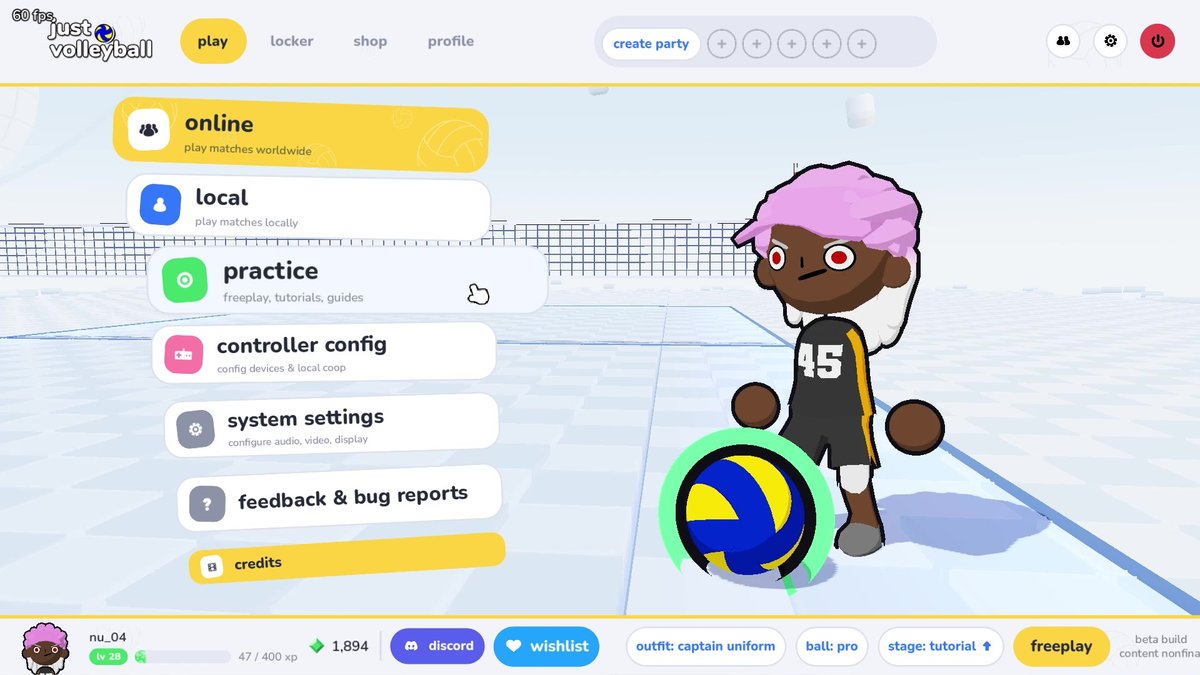
On the main Play screen, choose System Settings. This is the global audio, video and display menu. Your personal bindings, cursor, HUD and camera choices are in Profile settings instead; use the linked camera and controls guides for those.
 Open full-size image ↗
System Settings is the Play-menu entry for audio, video and display. This community tutorial screenshot is from a beta build. Start with the FPS display and your current values
In Video, enable the current frame-rate display, then note your existing values before changing them. Return to Free Play and use the same court, camera and action for each comparison. FPS is the local rendering readout: it does not diagnose online ping or prove the cause of a frozen match.
Video display controls in the release-day specification Setting Available choice What to check Window mode Windowed, borderless fullscreen or fullscreen Choose the mode that fits your display and switching needs. Resolution Display resolution selection Keep court lines and the aiming cursor readable after a change. VSync On or off Compare motion and visible tearing in the same scene. Frame-rate limit Unlimited or 25–144 FPS A cap is a ceiling, not a promise that the PC will reach it. 3D resolution 25–100% Compare the FPS readout and picture clarity after lowering it. Compare a lower-cost picture without losing the ball
For low local FPS, a useful first comparison is the Low quality preset. If you prefer to keep your other choices, change one effect or lower 3D resolution instead. This is a suggested comparison routine, not a tested best-settings preset or a guaranteed FPS gain. Keep the version that improves your readout while leaving the ball, landing marker and court lines clear.
Effects you can adjust in Video Control Documented options or scope Quality preset Low, Medium, High or Custom Shadow quality Low (drop shadows), Medium or High Floor reflections Visible on some maps Grass Visible on some maps Hair and accessory physics Movement effects, with a separate Low / Medium / High accuracy setting Choose a frame-rate cap you can keep
If the counter varies widely, compare a lower limit with your current setting during the same routine. Keep a cap your PC can sustain in that scene, then check it again in the match size you actually play. An intentional limit can explain a counter that stops at that value; raising the limit alone does not make the game render faster. Revert any change that makes the action harder to read.
Select the audio output and balance the rally
Open Audio and select the intended output device. Check Master and SFX if game contact sounds are too quiet, then adjust Music, Ambient and Crowd separately. Keep a note of the starting levels so you can undo the comparison. Test a serve or contact in practice after changing output; choosing a device in the menu is not confirmation that sound reaches it.
Audio controls with separate jobs Control group What you can change Levels Master, Music, Ambient, SFX and Crowd Output Audio output device Sources Audience voices, character voices and Quick Chat Voice each have an on/off option Mute voices while keeping quick communication usable
If spoken calls are distracting, turn off Quick Chat Voice in Audio → Sources. Audience and character voices have their own switches. Test a numbered quick call after the change and check that the spoken line behaves as intended. The communication guide lists the release-day calls; this audio switch is not a key rebind.
When it works
The FPS counter is visible, your chosen video settings leave the ball and court readable, and game audio reaches the intended device. Any voice category you disabled stays silent during its matching test.
If it does not work
If the picture becomes hard to read, restore the resolution, 3D resolution or effect value you noted first. If the counter stops at a fixed value, check the frame-rate limit before lowering quality again. If there is no sound, recheck the selected output and Master/SFX levels. If an online match still freezes while the local FPS looks normal, these settings have not established or fixed its cause.
Sources & version
nu’s Japanese specification guide · nu / asanue
Release-day text updated November 17 in Japan / November 16 in the US.
nu’s tutorial · nu / asanue
Updated for the November 16 PC release (November 17 in Japan). Its menu and tutorial images retain their visible beta-build context.