Court manual / PC release · keyboard & mouse
Just Volleyball keyboard and mouse controls
Use WASD to move and the mouse cursor to choose the ball’s destination. Left-click receives on the ground and spikes in the air; right-click dives on the ground and blocks in the air. Change personal bindings through the Profile tab’s own settings.
Updated 2026-11-17 · PC release · keyboard & mouse
- WASDMove your player
- MouseChoose the ball’s target
- LMB / RMBAction depends on ground or air
From input to contact
Read the default keys by player state
The same mouse button does a different job after you jump. Before changing bindings, use this state-based list in Practice → Tutorial.
Default keyboard and mouse inputs Input Grounded In the air / other context WASD Move Directional input affects hits Mouse cursor Aim a receive, set or serve Aim the spike; face the block LMB Receive; toss / hit a serve Spike RMB Dive Block once, lasting until landing E Set; can be charged Set; can be charged Space Jump; hold to charge Avoid repeatedly pressing it Left Ctrl / double-tap movement Sprint, using stamina Build momentum before jumping Shift Strafe; cancel a charged jump Keep the relevant action separate C Cycle four camera modes Same camera control V / wheel Zoom Same zoom control Q Return cursor to your own position Cursor shortcut Tab / T Scoreboard / text chat Match interface 1–7 Quick communication Match communication R Call a ball in Free Play Practice-only ball reset M Free mouse mode Changes normal cursor behaviour Open Profile, then its settings
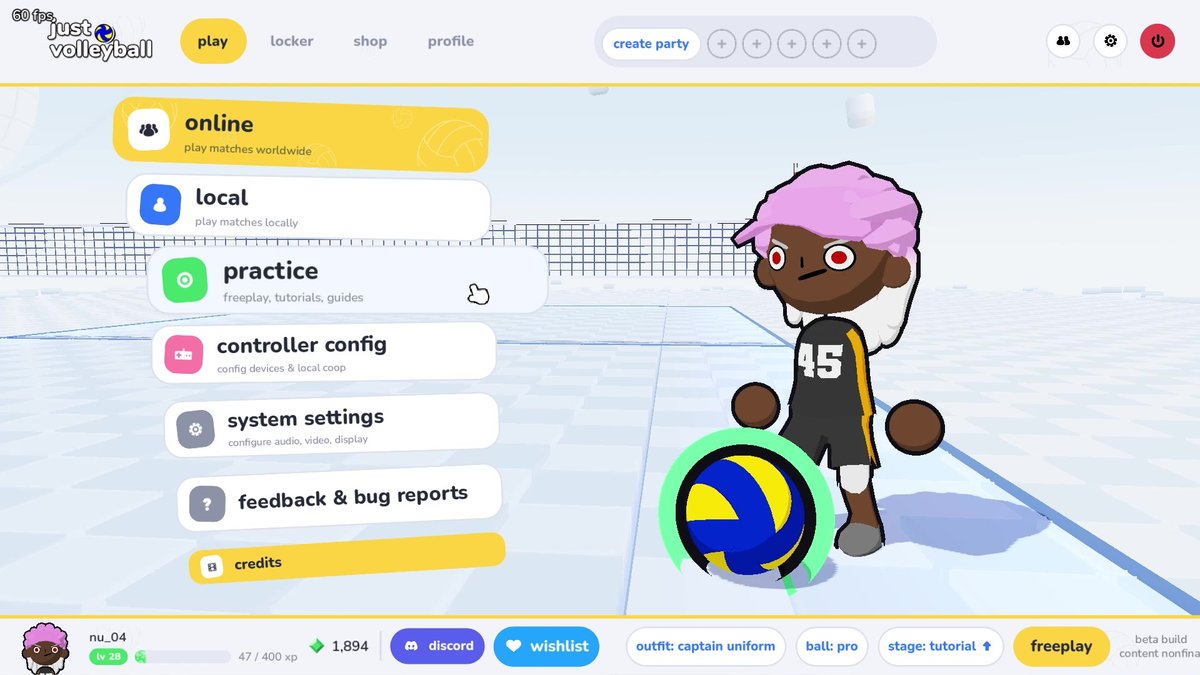
From the main menu, choose Profile at the top, then open that profile’s settings and its key bindings. Personal input settings live here; the System Settings entry on the Play screen is for system options such as audio, video and display. Select the action you want to change and assign the replacement input shown by the binding menu.
 Open full-size image ↗
The Profile tab is on the top bar. System Settings is a separate Play-menu entry. Community tutorial image from a beta build; release-day inputs are described in the text. Check the new binding in a simple action
Return to Practice → Tutorial and test the changed action before playing a match. A useful first check is a grounded E set followed by an airborne LMB spike; confirm that the displayed binding and the resulting action match what you assigned.
Restore launch-day controller support before rebinding
If you are using a controller and it fails to respond after the PC launch, fully exit the Steam client and start it again before reopening the game. Closing only the Steam window may leave it running. The developer’s November 16 “Controller fixes” announcement says disabled controller features were restored and a full Steam restart may be needed. Return to Practice and check movement and an action against the prompts.
When it works
Your chosen input triggers the intended action in the correct ground or air state. The tutorial can then be completed with that action.
If it does not work
If the input produces a different action, first check whether you are grounded or airborne. If a rebind seems missing, return to the same Profile and its settings. If you accidentally start a jump charge, press Shift to cancel it; older left-click cancellation advice is outdated.
Sources & version
nu’s tutorial · nu / asanue
Updated for the November 16 PC release (November 17 in Japan). Its menu and tutorial images retain their visible beta-build context.
nu’s Japanese specification guide · nu / asanue
Release-day text updated November 17 in Japan / November 16 in the US.
Just Volleyball Wiki: Profile entry · Just Volleyball Wiki
September playtest article, used here only to identify the Profile settings entry.
temkosoft: Controller fixes · temkosoft / Steam
November 16, 2026. The developer restored disabled controller features and says a full Steam restart may be needed.