Court manual / PC release · keyboard & mouse
Change your character’s hair or accessories
Open Locker from the main menu. Choose Hair or Accessories on the left, pick an item in the panel on the right and check the large character preview. Select Save and exit when the look is right, then reopen Locker to confirm the selection was kept.
Updated 2026-11-17 · PC release · keyboard & mouse
- LockerOpen your character editor
- Hair / AccessoriesChoose a tile and check the preview
- Save and exitReturn, then reopen to check
Choose the look and save it
Open Locker from the main menu
Choose Locker from the main menu to edit your character’s appearance.
 Open full-size image ↗
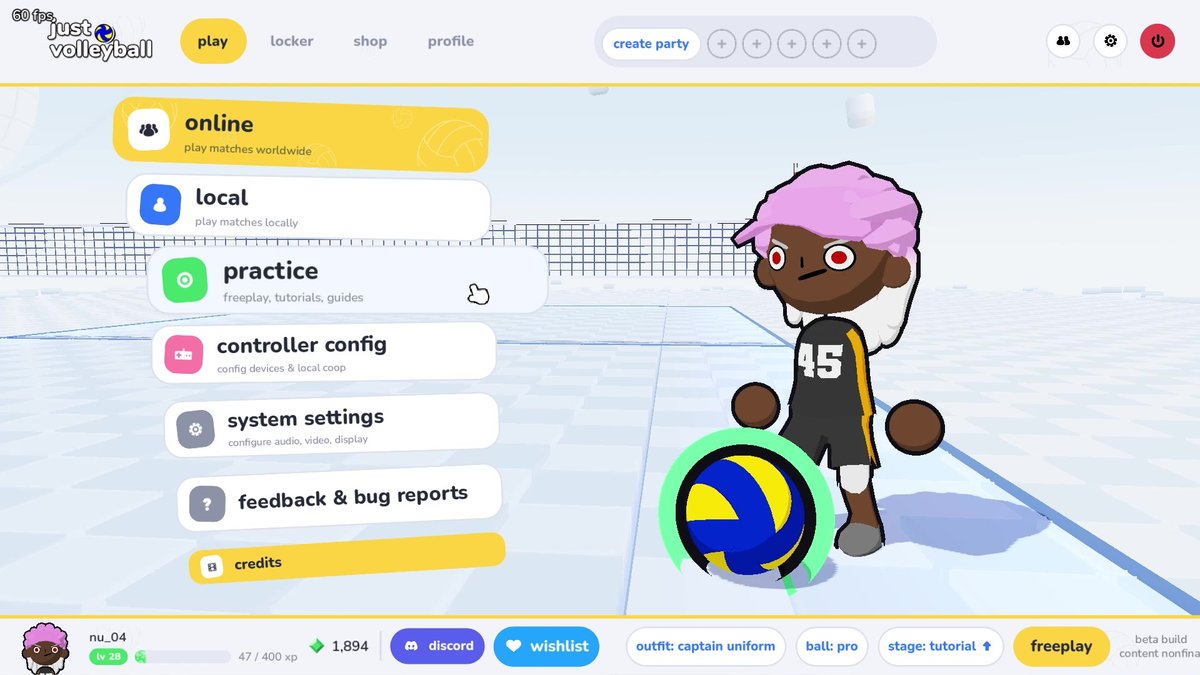
Locker is in the top bar of nu’s beta main-menu image. The official November 16 release trailer shows the editor below. Pick a hairstyle and compare the preview
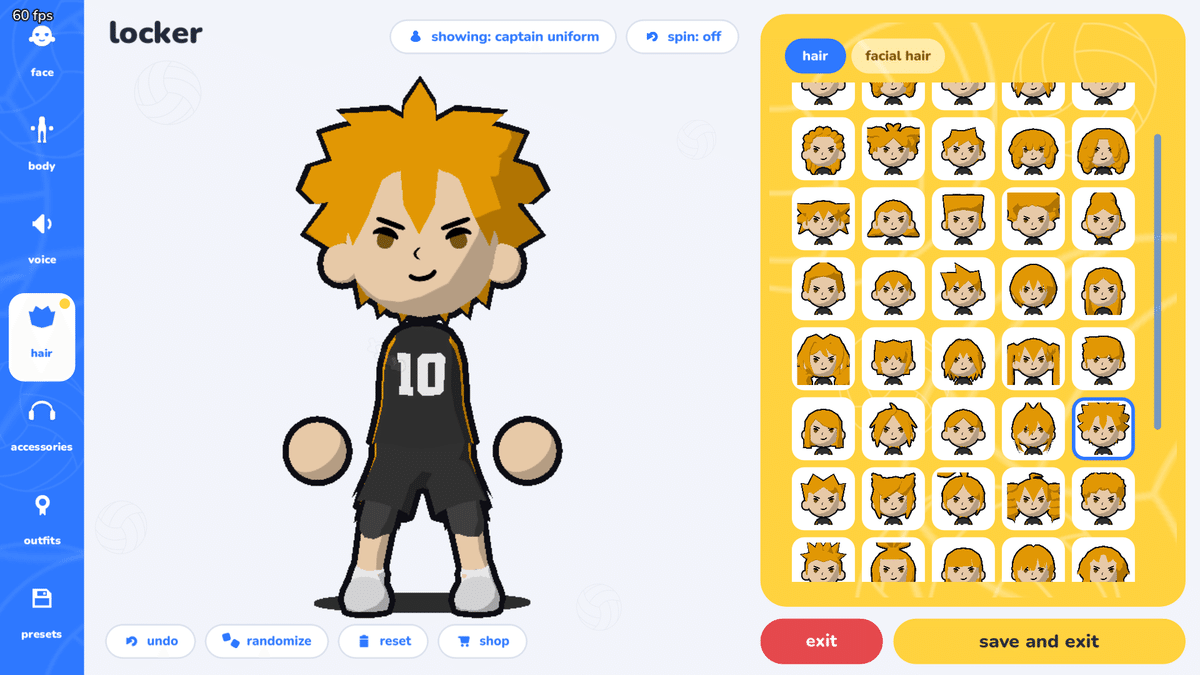
Choose Hair in the left sidebar, then select a hairstyle tile in the right-hand panel. Look at the large character preview before saving. In nu’s hair example, a blue outline marks the selected tile; the Hair and Facial Hair tabs separate those two choices.
 Open full-size image ↗
nu’s beta Locker image shows the hairstyle grid, blue selection outline and character preview. Open the original to inspect the full editor. Choose an accessory and read the selected tile
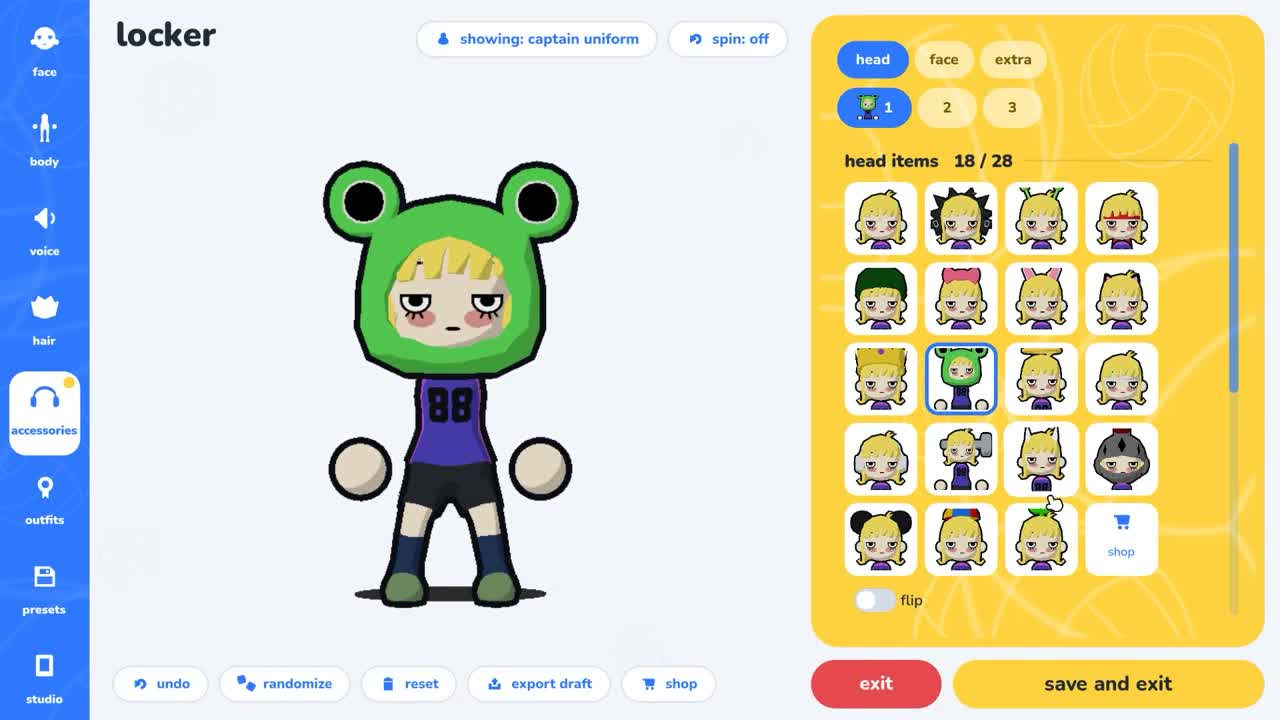
Choose Accessories in the left sidebar. The release-trailer example has Head selected at the top of the right panel. Pick an available item tile and compare the character preview. The green frog headwear in the example has a blue selection outline; it illustrates the selected state, not a required item for this task.
 Open full-size image ↗
Official November 16 PC release trailer, 26.5 seconds. This enlarged panel keeps the selected-item outline and Save and exit button readable; open the full image for the character preview. Use Save and exit after checking the look
Choose the yellow Save and exit button at the bottom right when the preview matches what you want. It is a separate button from the red Exit button. Use the button explicitly labelled for saving rather than assuming that leaving the editor has saved your change.
Reopen Locker to confirm the selection
Return to Locker and check the same Hair or Accessories category. The chosen tile and character preview should still show your intended look. This is the completion check before starting a match; a changed preview during editing alone is only the current draft.
When it works
After Save and exit, reopening Locker still shows your chosen hairstyle or accessory in the preview and the matching selected tile.
If it does not work
If the preview is not the look you wanted, return to the relevant Hair or Accessories panel, select the intended tile and compare it again before Save and exit. The editor also shows an Undo button for stepping back from a mistaken edit. Reopen the same category to check the result.
Sources & version
temkosoft: Just Volleyball — Out Now! · temkosoft
Official release-trailer view of Locker, including the accessory selection outline, preview and Save and exit button.
nu’s tutorial · nu / asanue
Updated for the November 16 PC release (November 17 in Japan). Its menu and tutorial images retain their visible beta-build context.